
OpenShare Administrator Launcher
The OpenShare Administrator Launcher is a desktop app for Windows and Linux. You sign in with your OpenShare account, pick one of your OpenShare servers, and the launcher opens that server in the OpenShare Administrator, the desktop administration tool for the OpenShare Engine. The connection runs through OpenShare, so you need no VPN and no open port on the server’s network. The launcher can also connect directly to an engine on your own network.
Before you begin
Section titled “Before you begin”You need:
- A Windows x64 or Linux x64 computer. There is no macOS version.
- A web browser on the same computer. The launcher signs you in through it.
- An OpenShare account. See Signing in.
- Admin access to the server through OpenShare: if Connect works for the server in the OpenShare console, the launcher works too. For someone else’s server, the owner offers you a console connection.
Each download bundles its own Java runtime, so you don’t need to install Java.
Download the launcher
Section titled “Download the launcher”- In the OpenShare console, go to Servers and open a server.
- Select Administrator Launcher, next to Connect.
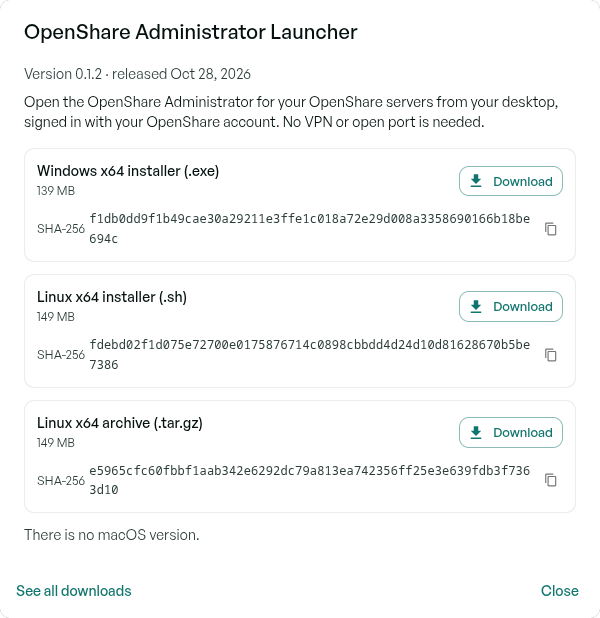
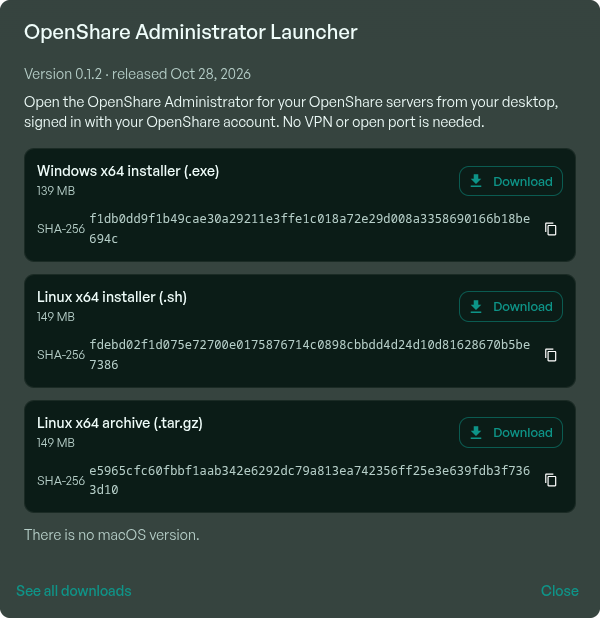
- The dialog shows the current version and a row for each download, with its size:
- Windows x64 installer (.exe)
- Linux x64 installer (.sh)
- Linux x64 archive (.tar.gz): the same launcher without an installer.
- Select Download on the one you want. Copy its SHA-256 with the copy button next to it, to check the file in the next step.
One installation opens every server you have access to, not just the one you downloaded it from.
The same files are in two other places:
- The console’s Downloads page. Select Downloads in the console’s sidebar, or See all downloads in the dialog. It lists earlier versions of the launcher too, each with its SHA-256, in case you need to stay on or go back to one.
- The OpenShare Engine releases on GitHub. The launcher files are attached to an
OpenShare Engine release
(currently OpenShare Engine 4.7.0-1), each with a
.sha256file that holds its SHA-256. You don’t need to sign in to download them.
Check the download
Section titled “Check the download”Before you run the file, compare its SHA-256 with the one in the dialog, on the Downloads
page, or in the release’s .sha256 file. In these commands, VERSION stands for the
version in the file name.
On Windows, in PowerShell:
Get-FileHash .\openshare-launcher_windows-x64_VERSION.exe -Algorithm SHA256On Linux:
sha256sum openshare-launcher_linux-x64_VERSION.shUpper or lower case letters don’t matter. If the values differ, delete the file and download it again. Don’t run a file whose SHA-256 doesn’t match.
Install
Section titled “Install”Windows
Section titled “Windows”- Run the
.exe. Windows asks whether to let it make changes, and shows Saga IT, LLC as the verified publisher: the installer and the launcher are signed with Saga IT’s EV code-signing certificate. - Allow it to install for all users of the computer, in
C:\Program Files\openshare-launcher. If you decline, you can still install for yourself only, in%LOCALAPPDATA%\Programs\openshare-launcher. - Follow the installer’s steps. It adds OpenShare Administrator Launcher to the Start menu.
Linux installer
Section titled “Linux installer”-
Keep the
.shfile in a folder that only you can write to, such as your own Downloads folder, not a shared folder such as/tmp. The installer unpacks itself next to the file while it runs. -
Run it from there:
Terminal window sh openshare-launcher_linux-x64_VERSION.shRun as yourself, it installs to
~/openshare-launcher. Run as root (withsudo), it installs for all users, in/opt/openshare-launcher. -
Follow the installer’s steps. It adds OpenShare Administrator Launcher to your desktop’s application menu.
Linux archive
Section titled “Linux archive”-
Create a new, empty folder that only you can write to. For a launcher shared by all users of the computer, use a folder that only root can write to.
-
Extract the archive into it. In these commands,
FOLDERstands for that folder:Terminal window tar -xzf openshare-launcher_linux-x64_VERSION.tar.gz -C FOLDER -
Start the launcher from the extracted
openshare-launcherfolder:Terminal window FOLDER/openshare-launcher/openshare-launcher
The archive adds no menu entry and has no uninstaller.
Open a server’s Administrator
Section titled “Open a server’s Administrator”- Start OpenShare Administrator Launcher from the Start menu or your application menu.
- Select Sign in with your browser, sign in to OpenShare in the browser window that opens, then return to the launcher. If no browser opens, select Copy link and paste the link into a browser on the same computer.
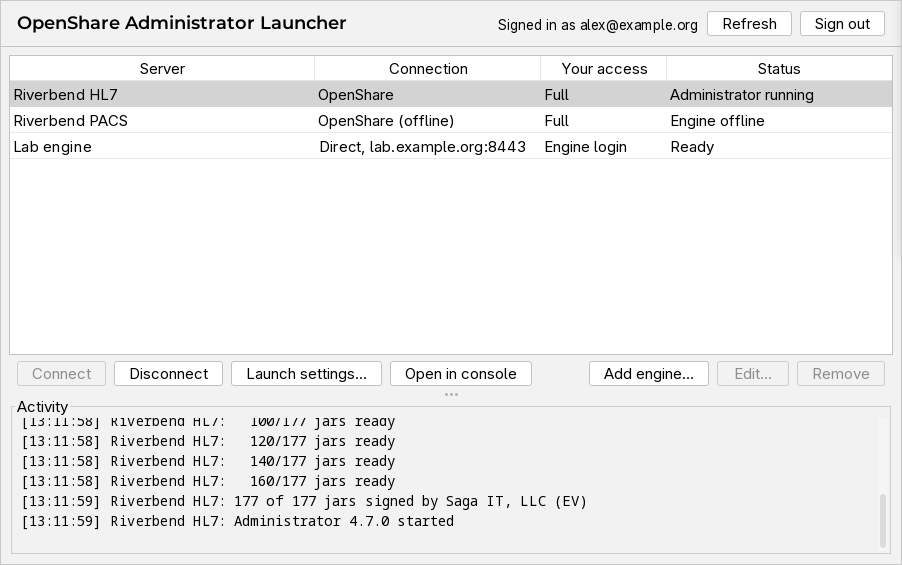
- The launcher lists your OpenShare servers and your access to each. Select a server and choose Connect, or double-click it.
- The OpenShare Administrator opens. Sign in to it with your user name and password on that engine.
You can open several servers at once; each gets its own Administrator. To give a server’s Administrator more memory, select the server and choose Launch settings….
The launcher goes through the same OpenShare checks as Connect in the console, so your organization’s security policy for the server applies in full:
- If your organization requires approval for each session, the launcher offers Request approval, waits, and opens the Administrator as soon as someone approves it. See Session approval.
- If an approval has to be given in the console instead, the launcher tells you, and Open in console takes you to the server’s page.
- With Read-only access, the server refuses changes, and some parts of the Administrator don’t work.
Disconnect closes the selected server’s Administrator. Signing out or quitting the launcher closes every Administrator it opened; the launcher asks first, because unsaved changes are lost. If your OpenShare sign-in ends while you work, the launcher returns to its sign-in screen and any Administrator that is already open keeps running.
Connect to an engine directly
Section titled “Connect to an engine directly”An engine you can reach on your own network doesn’t need OpenShare: you can connect to it without signing in.
- Choose Add engine…, give the engine a name, and enter its HTTPS address, for example
engine.example.org:8443. Without a port, the launcher uses 8443. - Select the engine and choose Connect.
- The first time, unless the engine’s certificate is publicly trusted, the launcher shows the certificate’s SHA-256 fingerprint. Compare it with the engine’s, which its administrator can give you, before you choose Trust certificate. From then on the launcher accepts only that certificate and warns you if it changes.
- Sign in to the Administrator with your user name and password on that engine.
Update the launcher
Section titled “Update the launcher”The launcher doesn’t update itself. The console’s Administrator Launcher dialog always offers the latest version.
- Close the launcher and every Administrator it opened. The Windows installer asks you to; on Linux nothing checks.
- Download and check the new version as above.
- Install it:
- Windows and the Linux installer: run the new installer the same way as before (on Linux, as the same user). It updates the existing installation.
- Linux archive: extract the new version into a new, empty folder, then delete the old folder. Don’t extract over the old folder: files the new version no longer has would stay behind.
Your launch settings, direct connections, and trusted signers and certificates carry over.
Uninstall
Section titled “Uninstall”- Close the launcher and every Administrator it opened.
- Remove it:
- Windows: in Settings, open Apps (Apps & features on Windows 10), select OpenShare Administrator Launcher, and uninstall it.
- Linux installer: run
uninstallin the installation folder, for example~/openshare-launcher/uninstall, orsudo /opt/openshare-launcher/uninstall. - Linux archive: delete the folder you extracted it into.
The uninstaller removes the installation folder, the menu entries and your Administrator logs folder. Everything else stays in your user data folder: cached Administrator files, the signers and engine certificates you trusted, your direct connections and your launch settings. To remove everything, delete that folder too.
| Computer | User data folder |
|---|---|
| Windows | %LOCALAPPDATA%\OpenShare\Administrator Launcher |
| Linux | $XDG_DATA_HOME/openshare-launcher, or ~/.local/share/openshare-launcher if XDG_DATA_HOME isn’t set |
Troubleshooting
Section titled “Troubleshooting”- The console says the launcher download isn’t available right now. Select Retry, or try again later. If it keeps happening, contact support.
- The console says a newer version was published. A new version came out while the dialog was open. Choose your download again.
- The SHA-256 doesn’t match. Delete the file and download it again. If it still doesn’t match, don’t run it; contact support.
- Connect is unavailable for a server. The Status column says why, and so does the tooltip on Connect. No admin access means you have no console connection to that server: set one up on Console Access, or ask the server’s owner. Engine offline means the server’s engine or its OpenShare plugin isn’t connected to OpenShare.
- The launcher asks you to trust a new signer. The launcher only starts Administrator files that are signed. Files signed by Saga IT are always accepted; other signers, such as a plugin vendor’s, are remembered for each server. A new signer is expected after an engine upgrade or a new plugin. If you didn’t expect one, choose Cancel and check with the server’s administrator.
For anything else, see Getting support.